Make phone calls
You can make phone calls from E-Z Contact Book using one of two methods:
Setup in E-Z Contact Book
- Open Settings > Preferences > Phone Formatting and Links
- Check the box Show phone numbers as Hyperlinks. It will make phone numbers in Contact Details clickable hyperlinks
- Select Call Phone Via as your preferred method
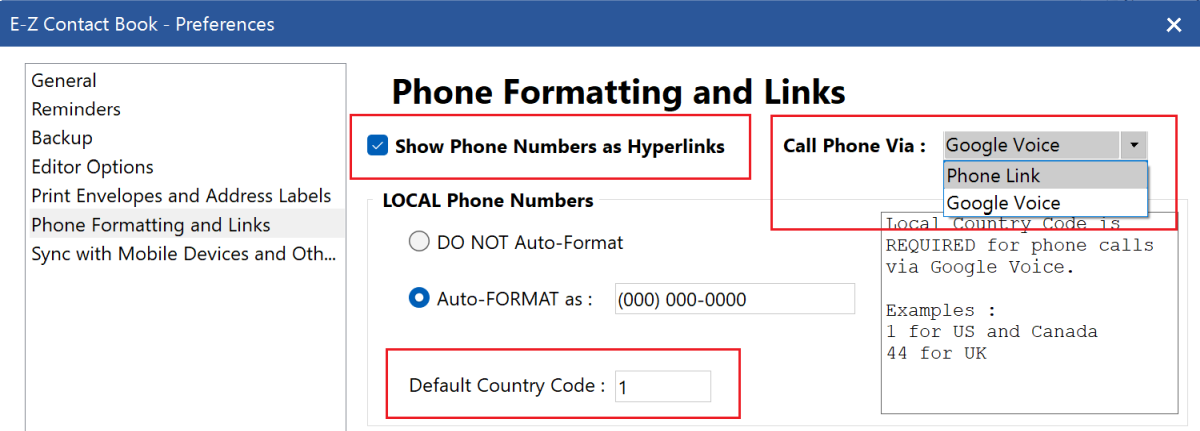
- If you choose to call via Google Voice, you also need to enter your international country code (even if you call local numbers)
- Using Google Voice requires you to have an account, and be logged in.
Using Phone Link app with a mobile phone
Microsoft app Phone Link is available in Windows 10 and 11.
It works as follows:
- When you click on a phone hyperlink in the Contact Details panel, the program passes that phone number to the Phone Link app
- The phone number then appears on the Phone Link keypad
- Click the green button Call on the Phone Link to start the call from your phone
Please note that not every mobile device is supported to work with Phone Link. See below the Phone Link requirements and setup
Note also that the Phone Link is part of the Windows operating system. The author cannot provide support for Phone Link
Phone Link Requirements and Setup
Ensure you have the most recent version of the Phone Link app via its settings.
Making a phone call
Click a phone number hyperlink:

If Phone Link is not set as the default app:
- Go to Windows Settings > Apps > Default Apps
- Scroll to Choose default by link type
- Find TEL protocol and change it to Phone Link
Once Phone Link is properly set:
- Clicking a phone number in E-Z Contact Book will launch Phone Link
- If prompted, connect your mobile device

- The number will appear on the Phone Link keypad—press Call

- During the call, select your preferred audio output on your phone:

Ongoing call:

Make phone calls via Google Voice
Click a phone number hyperlink. It will open a Google Voice page with that phone number.
Just click Call here, and use your computer audio devices - microphone, speaker, or a headset.

