

Before adding your first contact, ensure that at least one contact group has been created. When the program is newly installed, the database may be empty. During the initial setup, you can choose from default groups such as Personal, Friends, or Business.
 button in the tool bar, or
The Copy to a new contact link helps streamline data entry when creating records for family members or employees of the same company. Shared details such as addresses, phone numbers, and emails will be copied automatically. Simply enter the new contact’s name and update or remove any irrelevant information.
Only data from the Personal or Business page is copied based on the contact’s group type. If a contact belongs to a business-related group, data from the Business page will be copied. For non-business contacts, data from the Personal page will be used.


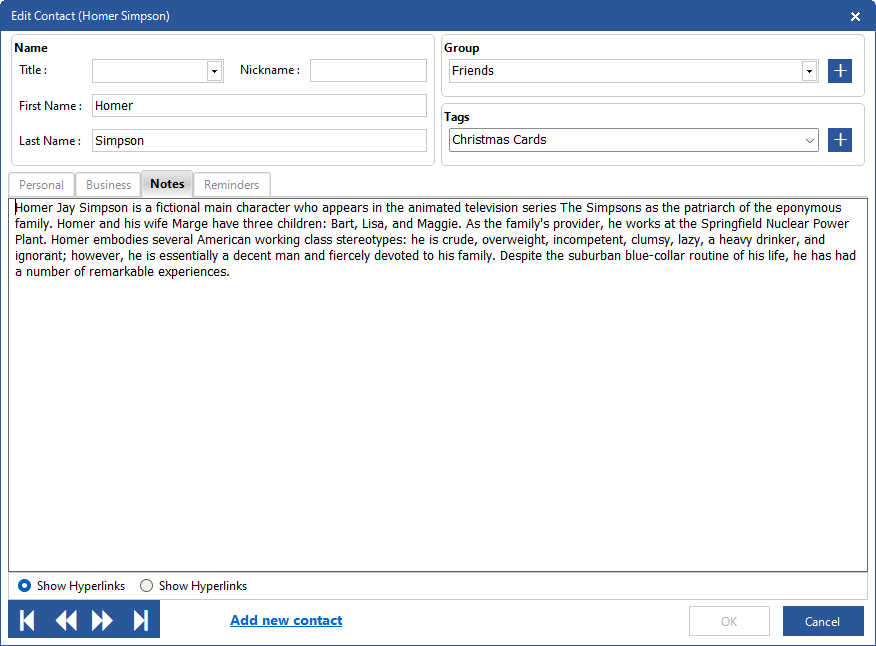
Page Notes is used to edit notes as plain text. The Notes area has standard text editing options - Cut, Copy, Paste, Delete selected text, and also Undo and Redo last operation. Corresponding key shortcuts are also supported: Ctrl+X, Ctrl+C, Ctrl+V, Del, Ctrl+A, and Ctrl+X.
Alternatively, Notes can be edited using the buttons Edit Notes and Add Note at the bottom of the main screen, below the Contact Details pane.
Page Reminders is used to setup advance reminders for birthdays and other events.
See Using reminders for more details.

Notes can be edited in the Notes page or through the Notes Editor.
There are two buttons to open the Notes editor: Edit Notes and Add Note:


A Date/Time stamp can be automatically added when appendind a note.
You can customize the Date/Time stamp format and its position within the text.

The Notes Editor offers two modes:
Show Hyperlinks - Highlights hyperlinks to web pages, email addresses, and local files. Clicking a hyperlink will open the link or launch the corresponding program for local filesShow Spellcheck - Highlights misspelled words but does not highlight hyperlinks
You can add a clickable hyperlink to a file in your system by dragging a file from the file explorer and dropping it into the Notes Editor window. The link will be automatically created at the current cursor position.
This feature allows you to "attach" documents, images, or other files to contact notes. However, there are two limitations:
The program includes an auto-formatting feature for local and international phone numbers, simplifying data entry. With this option enabled, you only need to enter numbers — no need to include symbols like (+), spaces, dashes, or brackets.
Phone numbers will be automatically formatted once you enter the full number, including the area code, and the total digits match a predefined format (local or international). Any punctuation will be removed when stored in the database.
You can customize the default local format (000) 000-0000 to match your country's phone number structure.
See Phone Auto-Formatting in the Program Options for details.
When editing contact records, the following restrictions apply: